Subway Receipt Generator
Customize your template with real-time preview.
Live Preview
How to make a Subway receipt?
Follow this simple step-by-step guide to generate a professional Subway receipt using our editor.
1. Select Subway Template
Pick the Subway receipt template from the Fast-food category to start your receipt.
2. Input Store and Order Details
Enter your Subway store number (e.g., #30816-0), address, cashier ID, and Host Order ID.
3. Add Items with Modifiers
List your subs, including quantities, sizes (like 6" or Footlong), and modifiers like '-Hot' or '-No Jalapenos'.
4. Download & Print
Preview your customized Subway receipt and download it as a high-quality PDF, ready to print.
FAQs
Everything you need to know about the Subway and how our receipt maker works. If you still can't find what you're looking for, feel free to reach out.
Explore other templates
More templates from the Fast-food category
Fuzzy's Taco Shop Receipt Generator
Zaxby's Receipt Generator
Chick-fil-A Receipt Generator
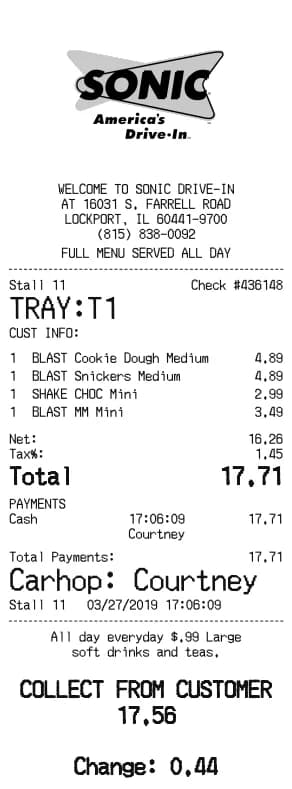
Sonic Drive-In Receipt Generator
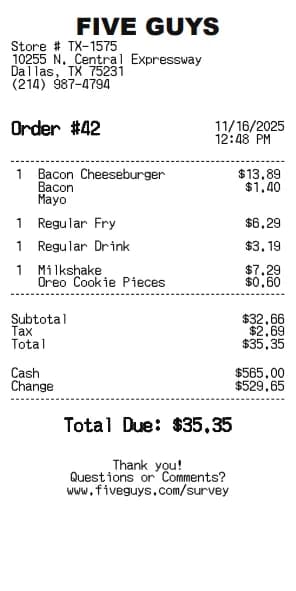
Five Guys Receipt Generator
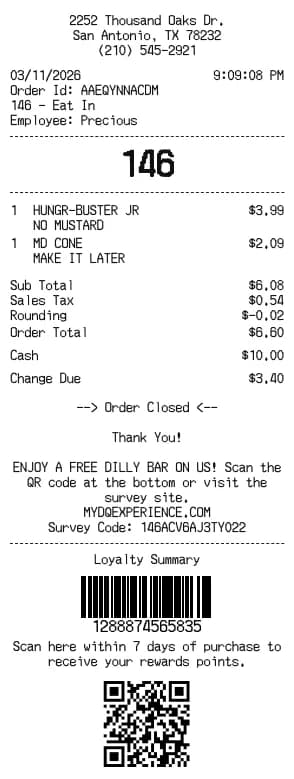
Dairy Queen Receipt Generator
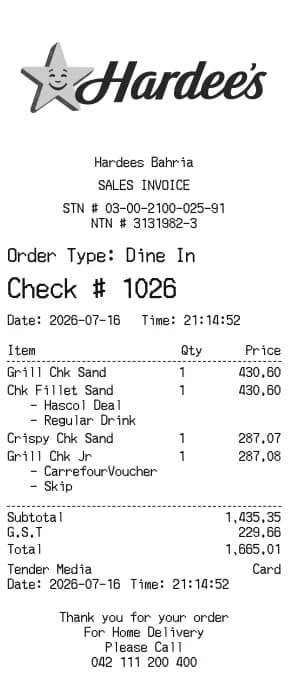
Hardee's Receipt Generator
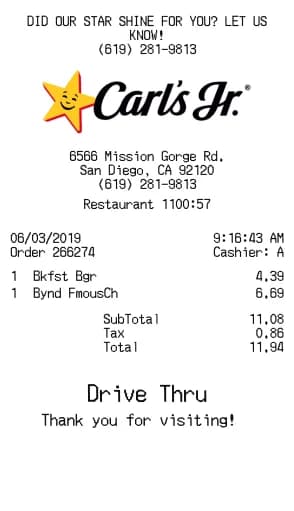
Carl's Jr. Receipt Generator
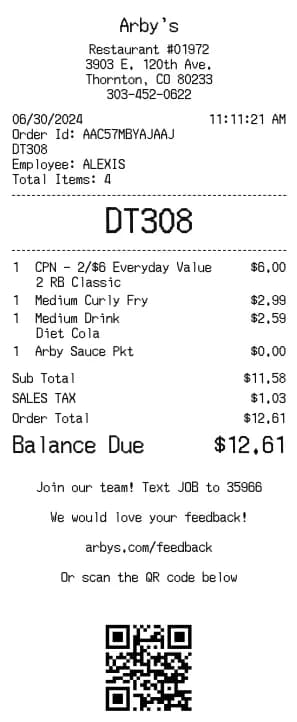
Arby's Receipt Generator
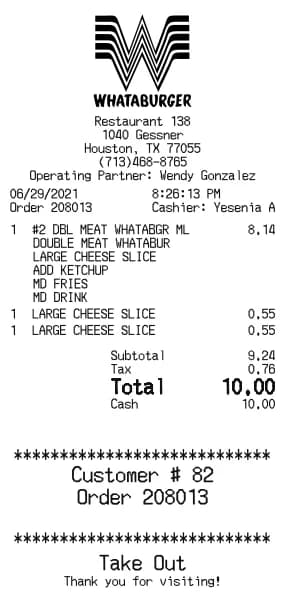
Whataburger Receipt Generator
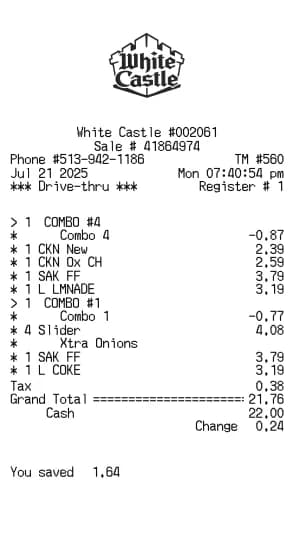
White Castle Receipt Generator
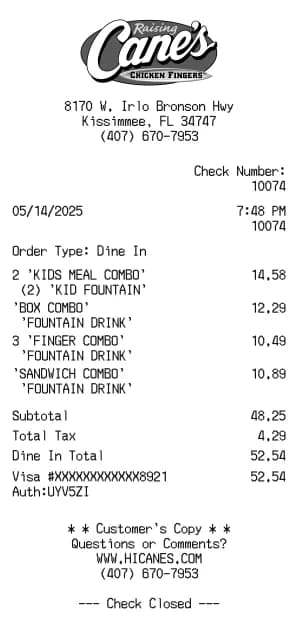
Raising Cane's Receipt Generator
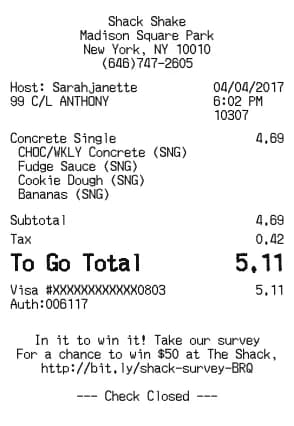
Shake Shack Receipt Generator
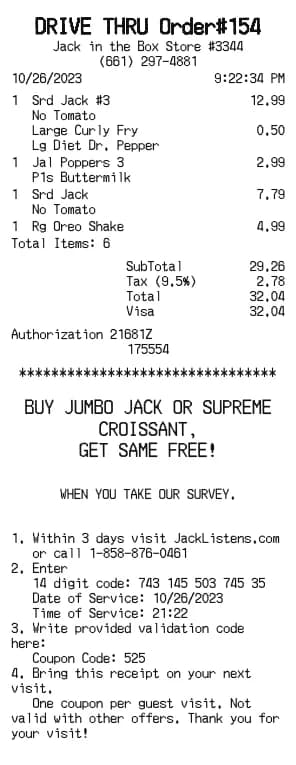
Jack in the Box Receipt Generator
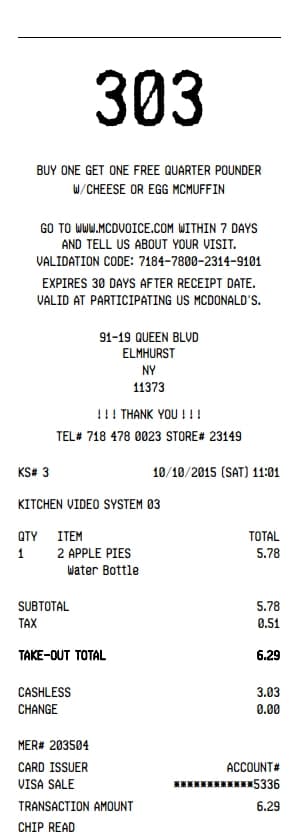
Mcdonalds Receipt Generator
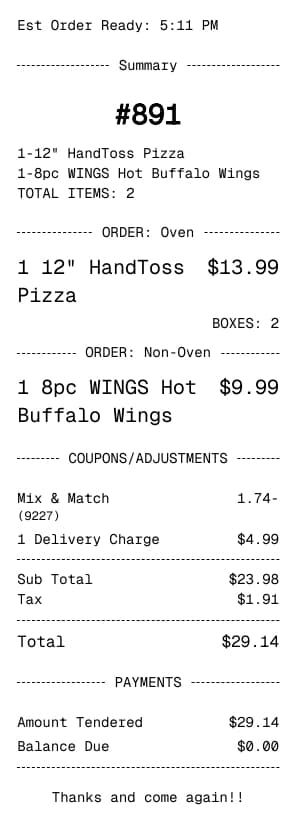
Dominos Receipt Generator
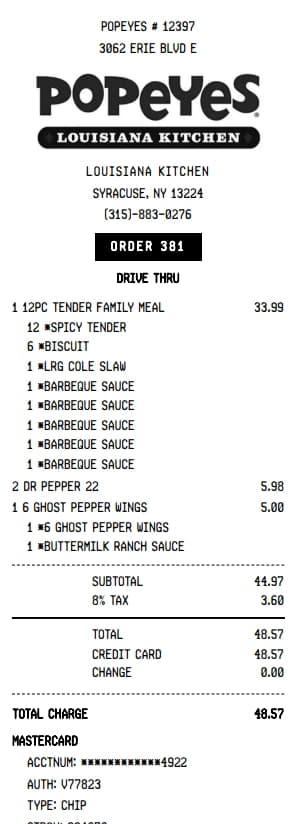
Popeyes Receipt Generator
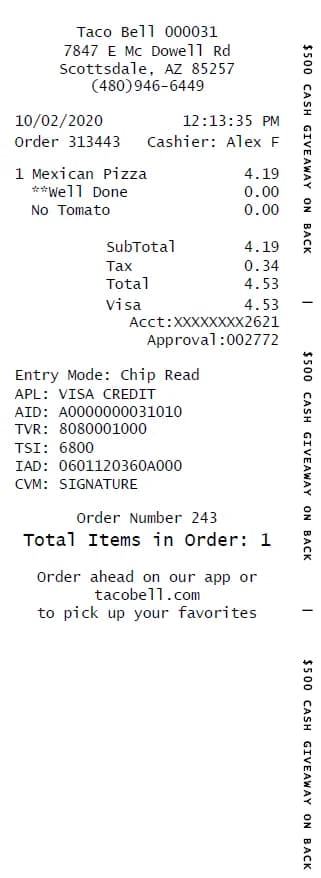
Taco Bell Receipt Generator
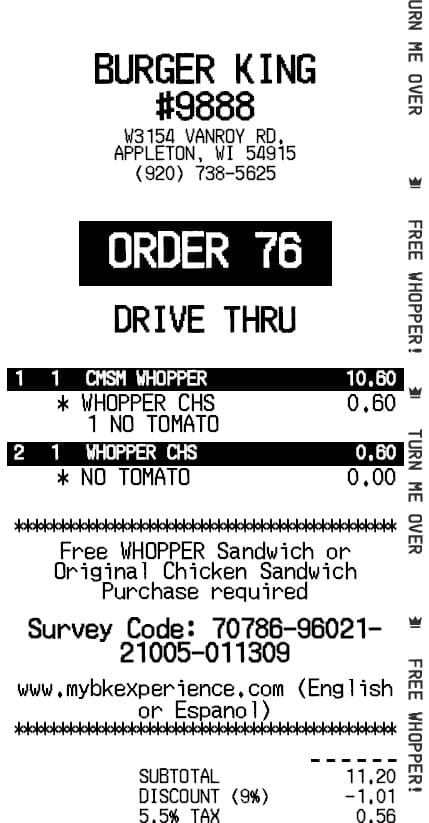
Burger King Receipt Generator
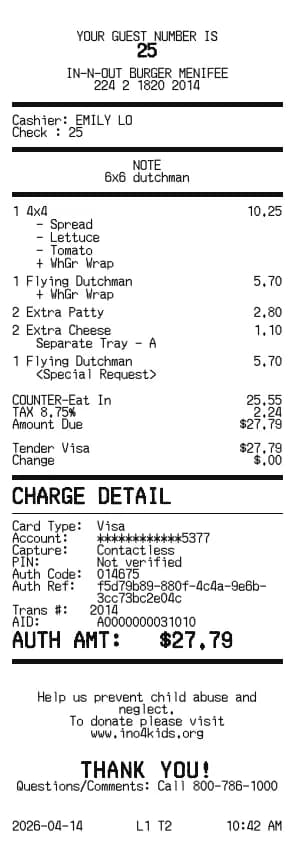
In-N-Out Receipt Generator
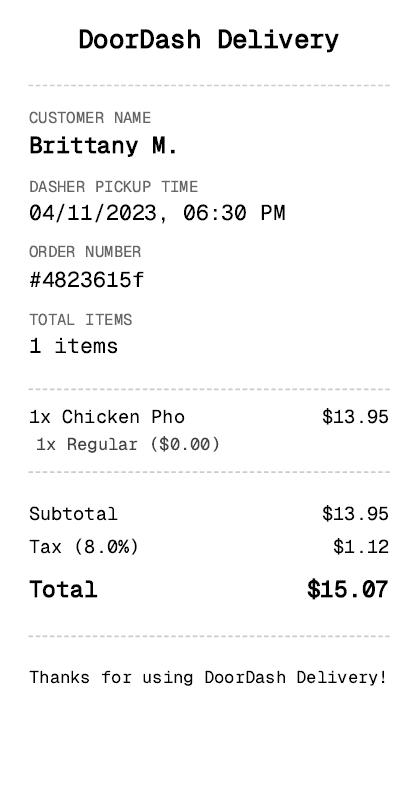
DoorDash Receipt Generator
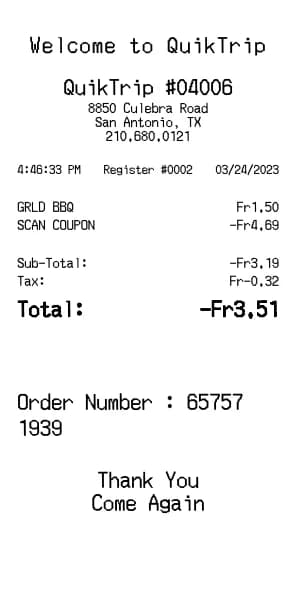
QuikTrip Receipt Generator
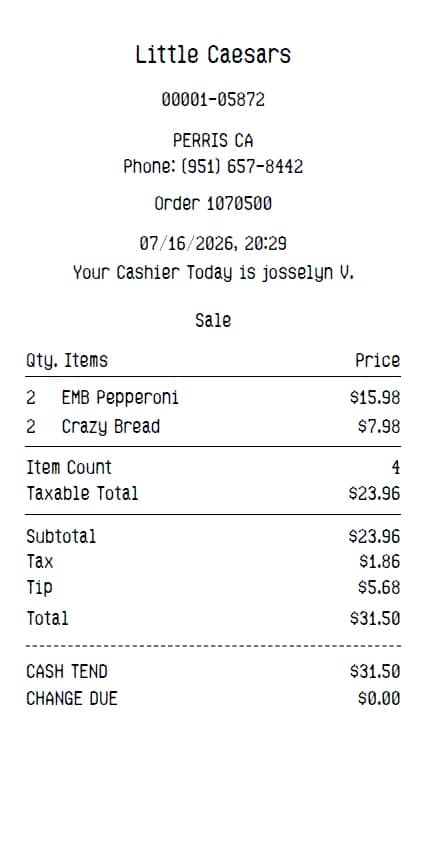
Little Caesars Receipt Generator
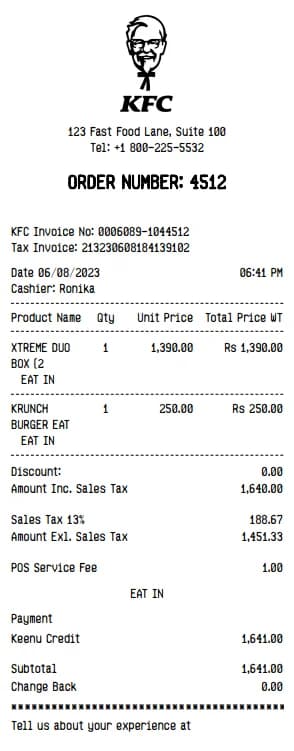
KFC Receipt Generator
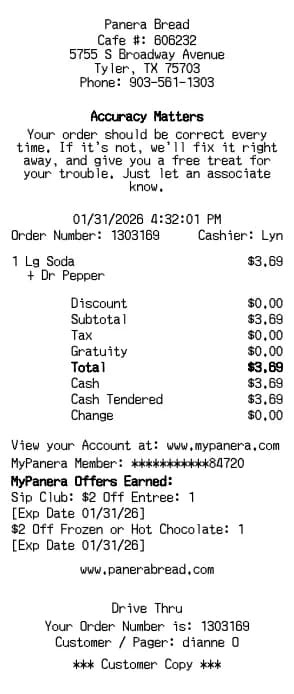
Panera Bread Receipt Generator

David Mitchell
David brings his expertise in SaaS and B2B tools to BuildReceipts. He regularly reviews and writes guides on how to use receipt generators to maintain accurate financial records for tax purposes and audits.
Create Your Receipts Now
Choose a template, enter your details and check the preview before downloading. See Pricing for receipt plan limits.