Square Receipt Lookup: Find or Reprint a Receipt

Sarah Jenkins
Content Writer
Jump to Section
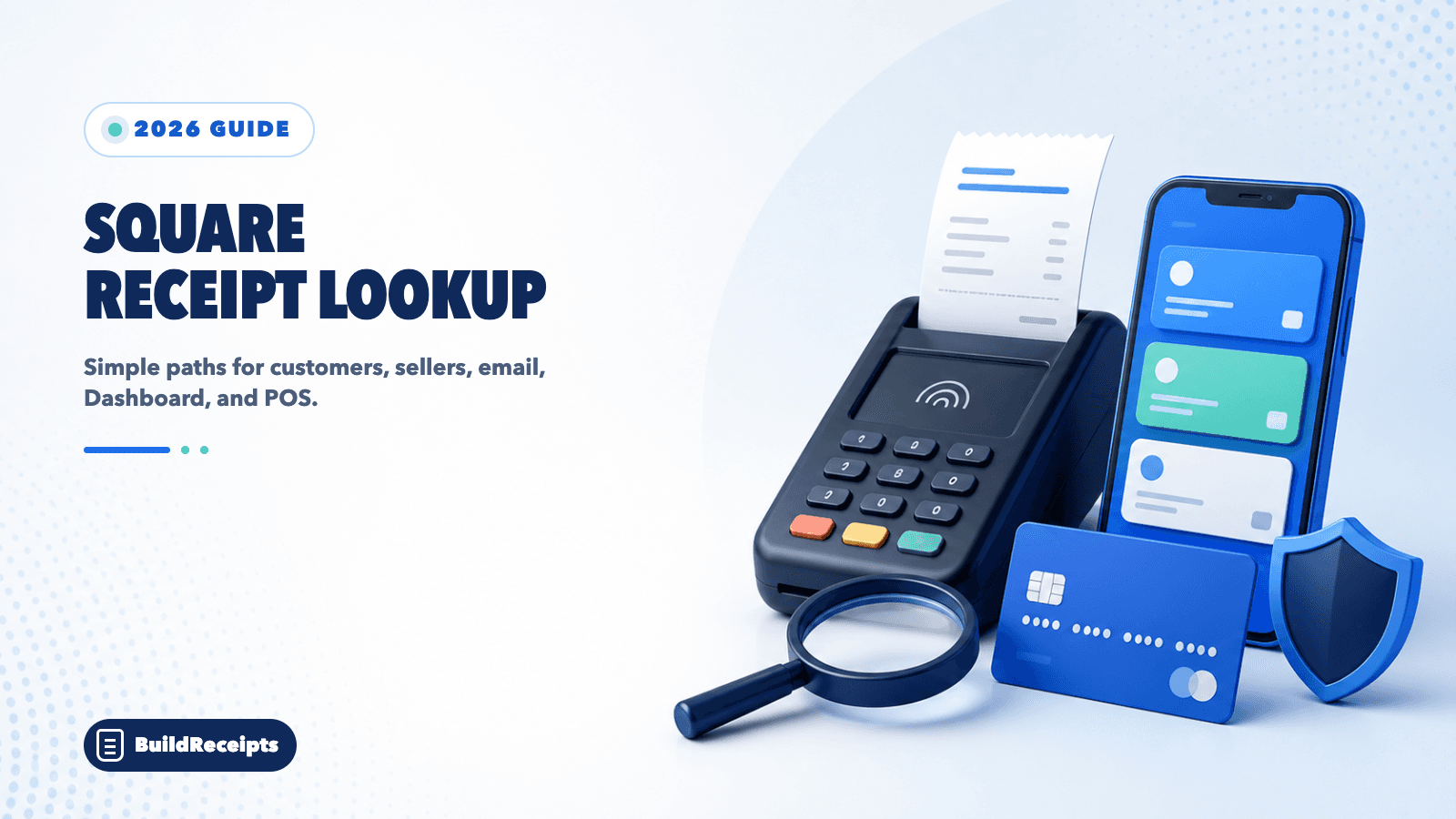
Quick answer: A customer should first search email or text messages, then use Square's official receipt lookup page or contact the seller. A merchant should open Transactions in Square Dashboard or the Point of Sale app, find the payment, and choose the option to send or print a new receipt.
The two paths are not the same. Customers cannot open a seller's private transaction list. Sellers need the right account permission before they can search sales. Start with the section that matches your role so you do not waste time in the wrong tool.
This guide also explains charges that show as “SQ*” or “gosq.com,” missing receipt fixes, receipt exports, and the safe role of BuildReceipts when an official copy is not available.
Updated August 22, 2026. Reviewed by the BuildReceipts Editorial Team against current Square help pages.
Can You Look Up a Square Receipt?
Yes. Square has one path for buyers and another for sellers. Pick your role before you begin.
| Your roleBest starting pointWhat you may need | ||
| Customer | Email, text, or official receipt lookup | Card and purchase details |
| Customer with a card charge | Statement name, then the seller | Date, amount, SQ* business name |
| Merchant on desktop | Square Dashboard > Transactions | Seller login and payment details |
| Merchant on phone or tablet | Square POS app > Transactions | App access and transaction permission |
| Bookkeeper needing many sales | Dashboard CSV export | Date range and export access |

How Customers Can Find a Square Receipt
A Square receipt normally comes from the business that took the payment. Square provides the payment system, but the seller owns the sale details and handles questions about the order.
Step 1: Search your email and text messages for the seller's name, “Square,” the amount, or the date.
Step 2: Open Square's official receipt lookup page and enter the requested purchase details.
Step 3: Check your card statement. A Square payment may show “SQ*,” “gosq.com,” the business name, or a short business type.
Step 4: Contact the seller if the receipt still cannot be found. Give the date, amount, item, location, and last four card digits. Never send a full card number by open email or social media.
If the seller cannot recover the record, use the steps in our lost receipt guide to collect other safe records before making a replacement copy.
How to Identify a Square Charge on Your Card
Square says its card charges may include “SQ*” or “gosq.com” with the merchant's name or business type. The name on the statement may not match the sign outside the store, so compare the date and amount before deciding the charge is wrong.
Step 1: Read the full statement name, not only “Square.”
Step 2: Match the amount and date to recent food, service, market, salon, taxi, or small-shop purchases.
Step 3: Ask other authorized card users if they know the sale.
Step 4: Contact the seller for a receipt. If you still believe the charge was not authorized, contact your card issuer through the number on the card or its official app.
How Merchants Find a Receipt in Square Dashboard
Square Dashboard gives the broadest search and export tools. Team members must have permission to view transactions.
Step 1: Sign in to Square Dashboard and open Transactions. Square may place this under Orders & Payments or Invoices & Payments, based on the account view.
Step 2: Set the date and location. Search by customer name, phone, email, last four card digits, receipt ID, item, ticket, note, or device when that field is available.
Step 3: Select the payment and check the amount, date, items, location, and status.
Step 4: Use the receipt option to send a new copy. Use Export if you need a CSV list for records instead of one customer receipt.
Square says card transactions can be returned for searches within the last year from the chosen search date. If an old sale is missing, change the date filter before changing the search words.
How Merchants Find a Receipt in the Square POS App
Step 1: Open the Square Point of Sale app and tap Transactions.
Step 2: Tap Search. Try the receipt ID, last four card digits, or the original payment card. On iOS, Square also lists customer and item-based search fields. Android search options are more limited.
Step 3: Open the correct payment and check the details.
Step 4: Choose New Receipt, then send or print it.

Resend, Reprint, or Export: Which One Do You Need?
| ActionUse it whenResult | ||
| Resend | The buyer lost the email or text | A new digital receipt |
| Reprint | You need a paper copy from the POS app | A printed receipt |
| Export CSV | You need many transactions for records | A spreadsheet, not a customer receipt |
| Screenshot or PDF print | You need a readable personal copy | A saved view of the official record |
In the POS app, Square says merchants can open Transactions, choose the payment, select New Receipt, and print it. In Dashboard, open the payment and choose Send Receipt. A CSV export is useful for bookkeeping, but it is not the same as a full itemized customer receipt.
What Information Appears on a Square Receipt?
The exact layout depends on the seller's settings and the sale. A useful Square receipt may show the business name, location, date, items, quantity, price, tax, tip, discount, total, payment type, last four card digits, and receipt ID.
Match the date, total, business, and last four digits before using a copy. If one key detail is wrong, return to the transaction list and check for another sale with the same amount.
Why a Square Receipt Lookup May Fail
| ProblemSimple fix | |
| Receipt email is missing | Check spam, other email accounts, and text messages |
| Statement name looks unknown | Read the text after SQ* or gosq.com and match the date and amount |
| Merchant search shows no sale | Widen the date range, change location, and search by receipt ID or last four digits |
| Team member cannot open Transactions | Ask the account owner to review that person's permission |
| Customer received the wrong receipt | Use the “Not Your Receipt?” option in the digital receipt to unlink it |
| Old card search fails | Search the correct past date range and try receipt or customer details |
| Receipt cannot be printed | Check the printer connection, then resend the digital copy |
A customer who got a receipt for someone else's purchase should not forward or edit it. Square says the digital receipt can include a “Not Your Receipt?” option that helps unlink the email address from that payment card.
Square Receipt vs Invoice
A receipt shows that a payment was completed. An invoice asks for payment or records an amount due. A paid invoice can support your records, but it may not contain the same point-of-sale details as a receipt.
If you are unsure which file to send, read our simple guide to the difference between an invoice and a receipt. Choose the document that matches what happened, not the one that only looks better.
How BuildReceipts Can Help When the Official Copy Is Missing
Sometimes you know the sale details but cannot get the original layout. The itemized receipt maker can help you place the seller, date, items, tax, tip, and total into one clean personal record.
BuildReceipts does not connect to Square, open seller accounts, or verify a payment. A custom copy must not be used as an official Square receipt or as false proof. Keep the original email, card record, order page, or seller message with it when another person must review the sale.
For more ways to support a missing record, see what may count as proof of purchase without a receipt.
Conclusion
Customers should start with email, text, Square's receipt lookup page, and the seller. Merchants should search Transactions in Dashboard or the POS app, then send or print a new receipt. A statement label such as SQ* can help identify the business, but always match the amount and date.
Use an official seller or Square record whenever proof is needed. Use a personal copy only to organize facts you already have, and label it clearly.
Primary Sources
Facts in this guide were checked on August 22, 2026 using Square's official pages for customer receipt lookup, transaction search, printing and resending receipts, automatic digital receipts, and cardholder charge help.
Frequently Asked Questions
Have more questions about Square Receipt Lookup: Find or Reprint a Receipt? Check out these common queries.